Trend Tool – Configuring a Toolbar
Note: You can change configuration settings for this tool in Run mode. However, these settings usually only persist for the current runtime session. When you close the CygNet Studio screen on which the tool resides, the tool settings may revert to those originally configured in Edit mode.
The Toolbar page is used to configure the trend toolbar, which enables the viewing of predefined windows of time, scrolling backwards and forwards along the x-axis, and so forth.
|
Trend Tool - Toolbar Page |
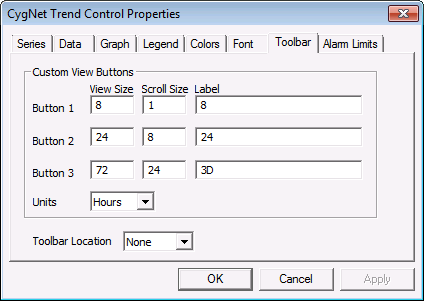
Toolbar Page Properties
The following table lists and describes Toolbar page properties.
| Property | Description |
|---|---|
|
Button 1 |
This setting enables the configuration of a single toolbar icon that establishes the view size in units of time, the number of time units by which to scroll, and the button label. The button settings are as follows:
See also CustomSize1, CustomScroll1, CustomLabel1, and CustomUnits. |
|
Button 2 |
This setting enables the configuration of a single toolbar icon that establishes the view size in units of time, then number of time units by which to scroll, and the button label. The button settings are as follows:
See also CustomSize2, CustomScroll2, CustomLabel2, and CustomUnits. |
|
Button 3 |
This setting enables the configuration of a single toolbar icon that establishes the view size in units of time, then number of time units by which to scroll, and the button label. The button settings are as follows:
See also CustomSize3, CustomScroll3, CustomLabel3, and CustomUnits. |
|
Units |
Defines the time unit type associated with the View Size and Scroll Size values entered in the Button 1, Button 2, and Button 3 fields. See also CustomUnits. |
|
Toolbar Location |
This setting defines where on the Trend Tool screen the toolbar appears. By default, no toolbar is displayed. See also ToolbarLocation. |


